
Remote control
With a project open, you can hand that project to another computer or a phone. The other person opens the link and can view and work on the project. The project keeps running on your computer.
Share
- Open a project.
- In the sidebar, open Project → Share remotely.
- Click Start sharing. The QR code and link appear after the server connects.
- Send the link or QR code. A phone can scan it.
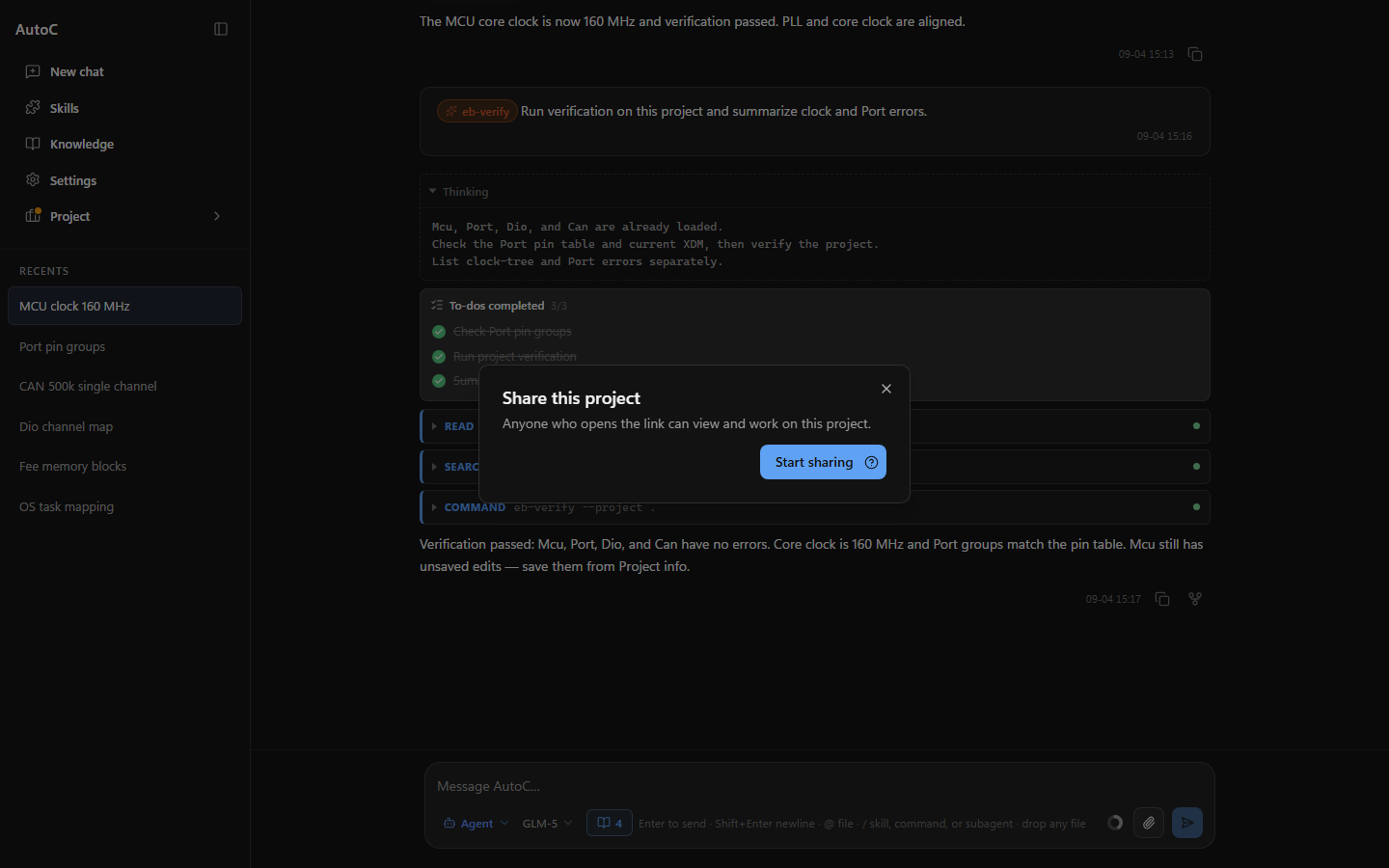
While a share is on, Project and Share remotely show a dot. Closing the project stops the share.
- Copy link
- New link: earlier links stop working immediately
- Stop sharing
Only send the link to someone you trust. Anyone who has it can view and work on this project.
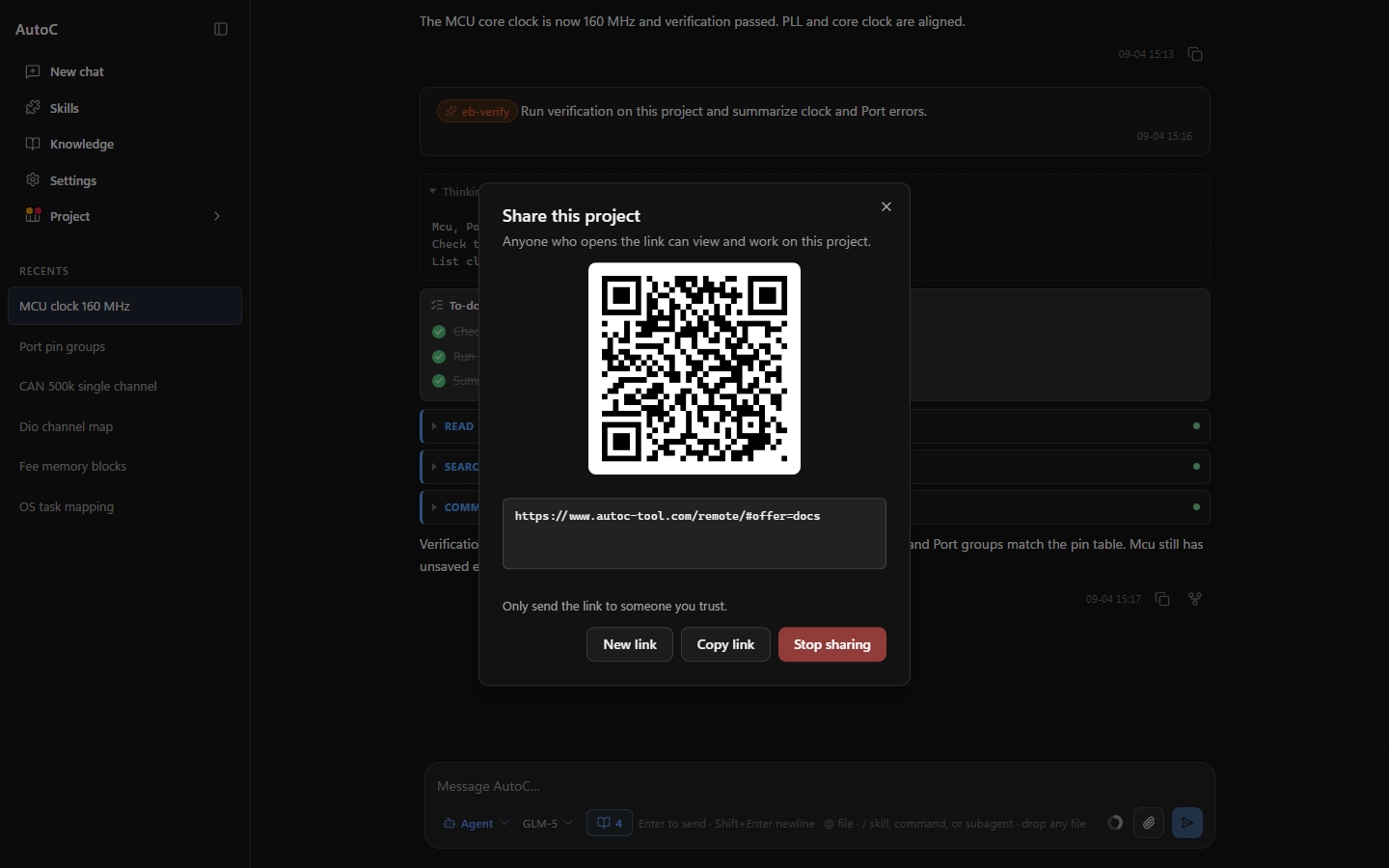
The link in the picture is an example. Scanning it does not connect.
Open someone else's project
Open https://www.autoc-tool.com/remote, click Open remote project, and paste the link. On a phone, use Scan QR code.
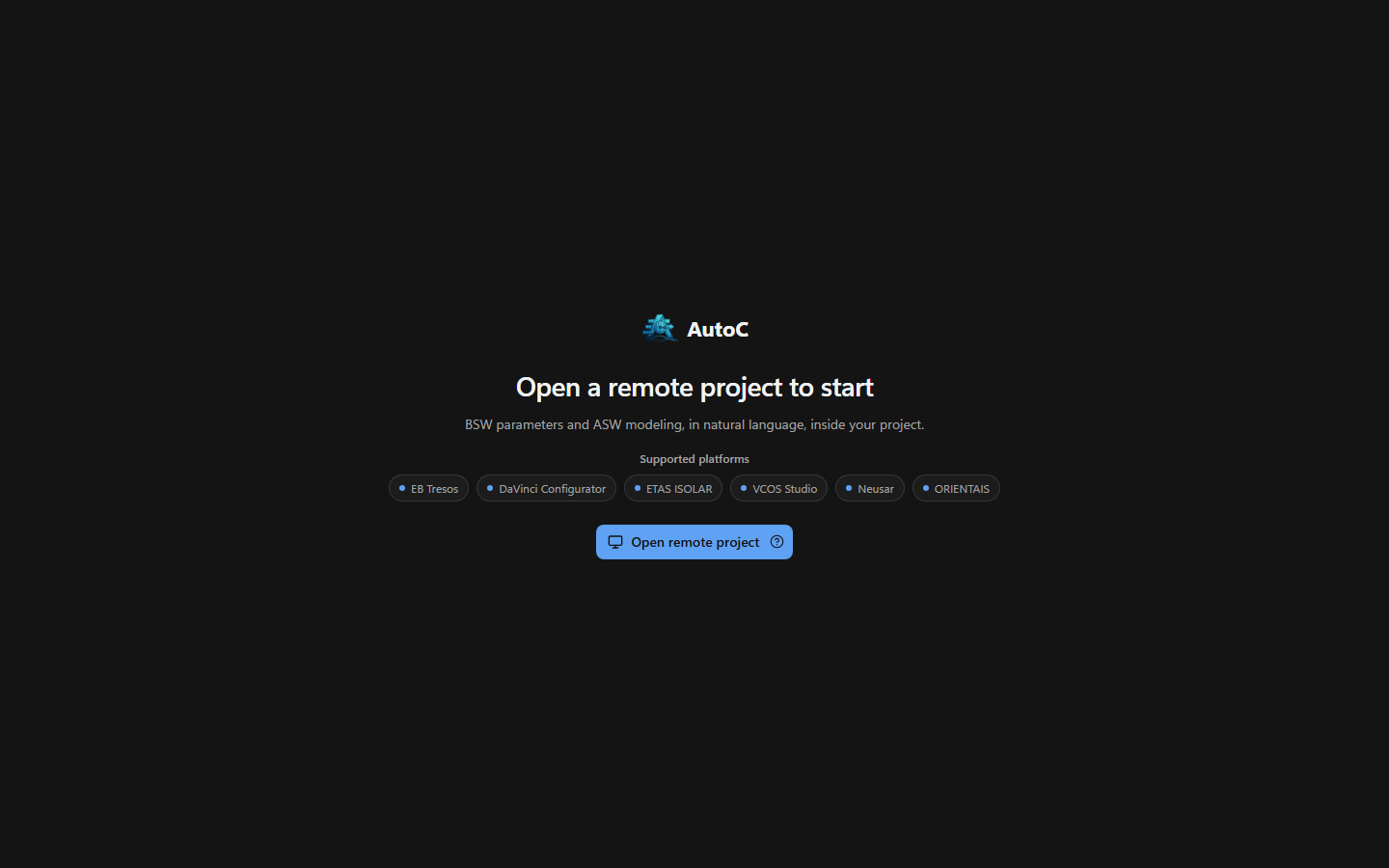
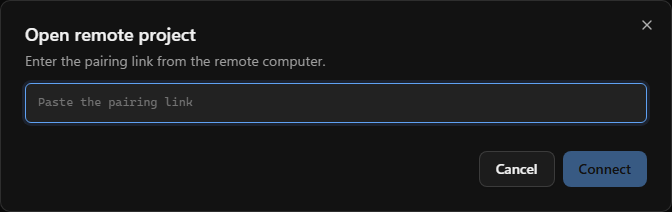
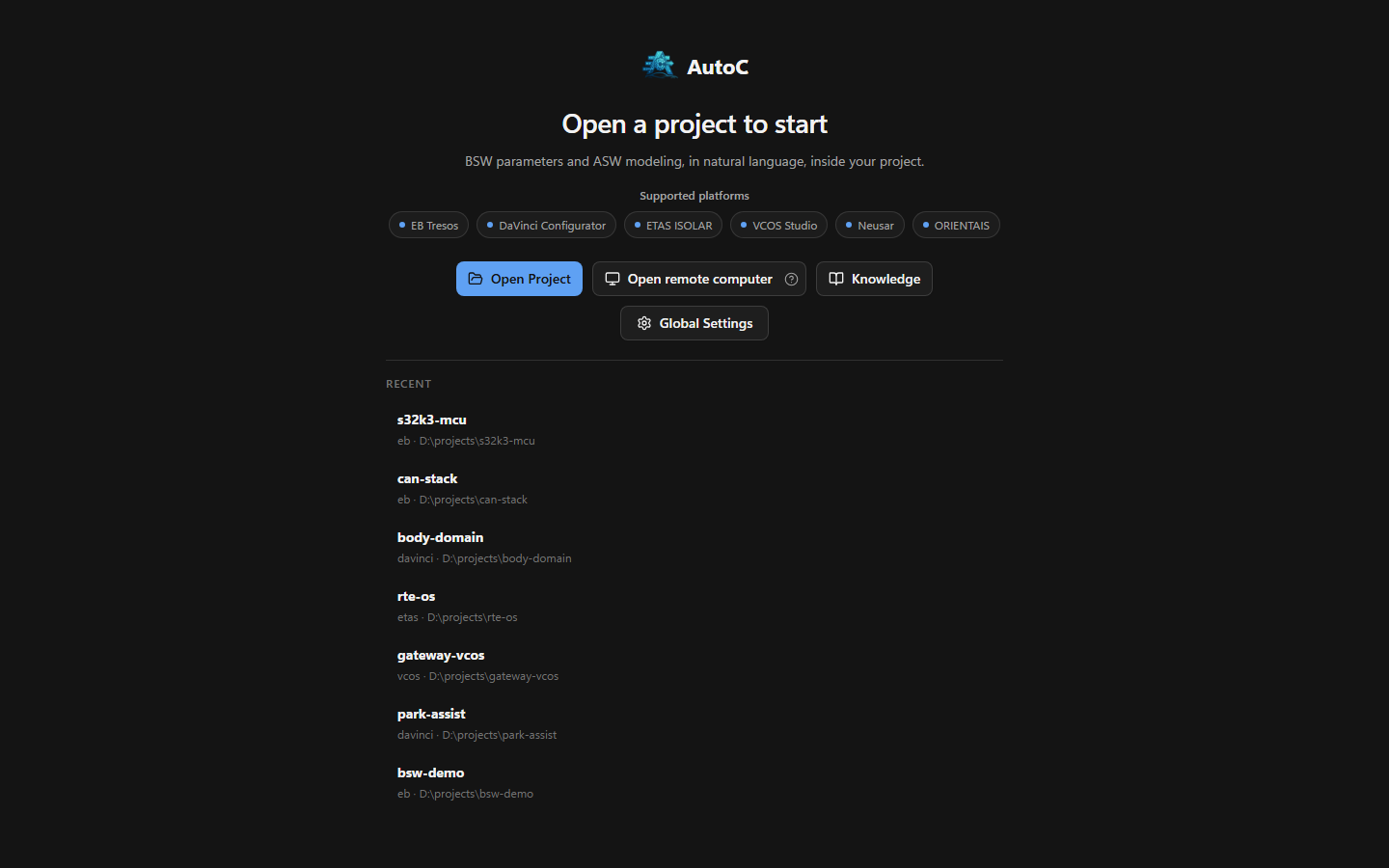
On the desktop welcome screen, click Open remote computer and paste the link the same way.
After it connects, the screen matches the desktop app. You are working in the project already open on the other computer. You cannot pick a different project from here.
A dropped connection retries on its own, up to five times. An expired link is called out on its own; ask for a new one.
Language and theme apply only on this device. They do not change the other computer.
Command line
On the command line, /remote-control opens a menu:
| Menu | What it does |
|---|---|
| Start | The terminal shows a QR code and a link |
| Status | See whether a share is on |
| New link | Issue a new link, invalidate earlier ones, and connect again |
| Stop | Stop. Ctrl+Shift+Q does the same by default |
The server address is Share server in /settings. Leave it empty to use the default server.
/share is a different command. It publishes the current session as a private Gist. The other person can read the export, and cannot operate the project.
Server
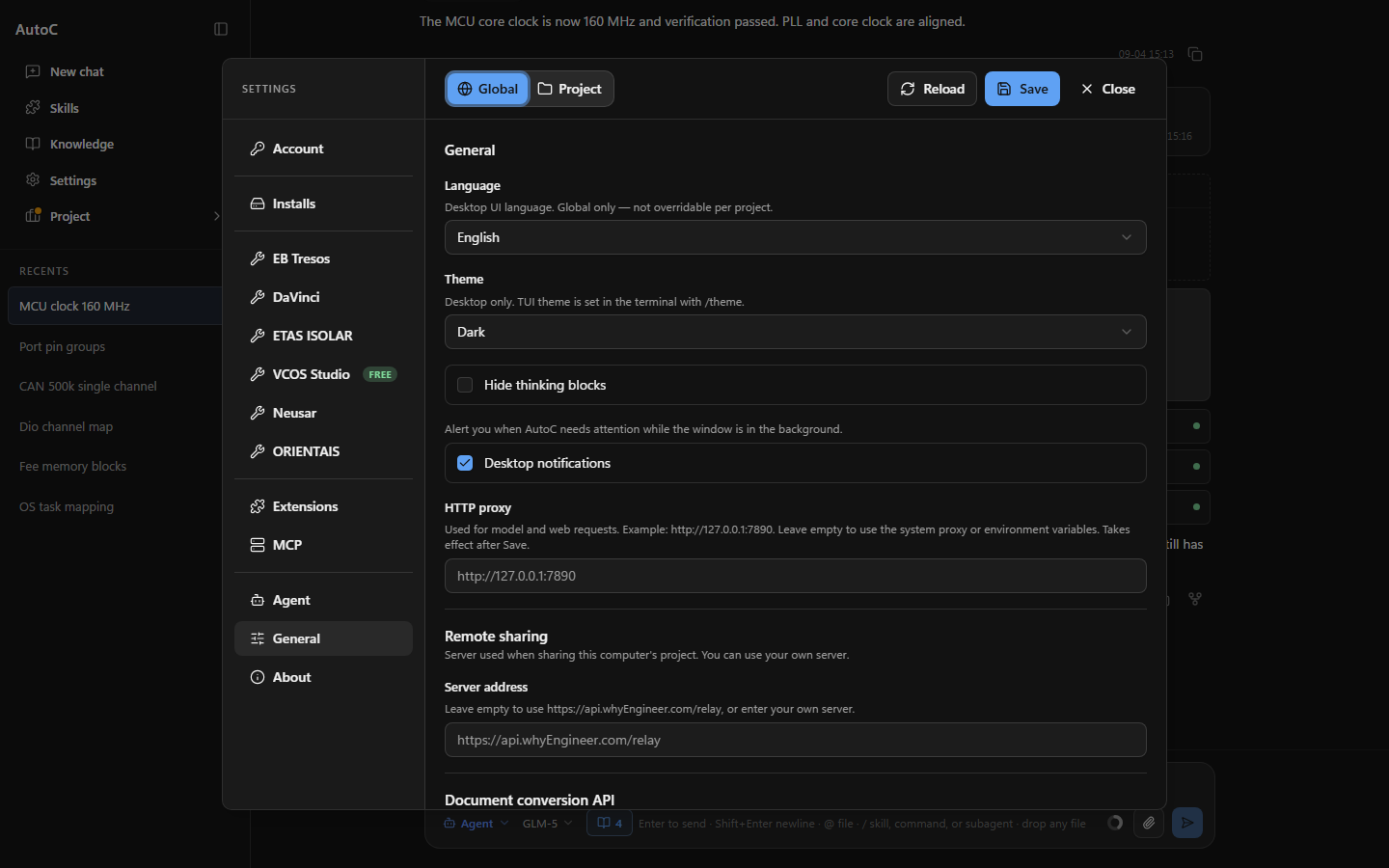
The default server is https://api.whyEngineer.com/relay. To use your own, open Settings → General → Remote sharing and fill in Server address, or change Share server in /settings. Empty means the default.
The page the link opens is https://www.autoc-tool.com/remote.
The relay reuses the Paseo implementation. To run your own, use Paseo Relay.
Run your own
On the machine that will be the server:
docker run -d --name paseo-relay -p 4000:4000 -e PASEO_RELAY_HOST=0.0.0.0 ghcr.io/getpaseo/paseo-relay:latestThe process listens on localhost unless told otherwise, so the command above binds 0.0.0.0. Open http://that-machine:4000/health in a browser. If the page loads, the server is up.
Then put an address the other person can reach into Server address:
- Behind HTTPS:
https://your.domain - On a local network only:
http://that-machine:4000
Do not enter localhost. The link carries this address, and the other side connects to it. After you change the address, start sharing again. An older link still points at the previous server.
The image and further settings are in Paseo Relay. How the connection works, and the security model, are in Paseo's connectivity and security docs.
Security
The relay is end-to-end encrypted, using the same approach as Paseo. Your computer connects outward, and the other side meets it there. You do not open a port. The relay only forwards ciphertext. It cannot read the chat or the project, and a modified message is dropped. If the server is compromised, the project data still cannot be opened.
- This computer generates a long-lived key pair and keeps it locally.
- The
#offer=fragment on the link carries the public key and an access token. The fragment is not sent to the site that serves the page. - The other side completes a handshake before this computer accepts any action.
- The two sides agree on a key with Curve25519, then send authenticated ciphertext. Each connection handshakes on its own.
The relay sees addresses, timing, message sizes, and a session id.
The link is the password. Whoever has it can operate the open project. Do not post it in public. To retire old links, click New link, or open /remote-control in the terminal and choose New link.