
ETAS ISOLAR
AutoC reads and writes ECUC configuration through ETAS RTA-CAR / ISOLAR-B. You need the ISOLAR install directory and a project path that contains .project and EcucValueCollection_Generated.arxml.
Tested versions
| RTA-CAR / ISOLAR-AB |
|---|
| RTA-CAR 9.1.0 / ISOLAR-AB 9.1.0 |
| RTA-CAR 9.2.0 / ISOLAR-AB 9.2.0 |
| RTA-CAR 12.1.2 / ISOLAR-AB 12.1.2 |
| RTA-CAR 12.9.0 / ISOLAR-AB 12.9.0 |
On first use, AutoC installs the ISOLAR-B plugin automatically. No extra setup is needed in most cases.
Other platform versions
If your ISOLAR-AB / RTA-CAR version is not listed above and Verify in Project info fails, please contact us so we can evaluate support.
Open the project and set paths
- Open a project — pick the RTA-CAR project root.
- Open Settings → Install paths and set the ISOLAR-AB install root (it contains
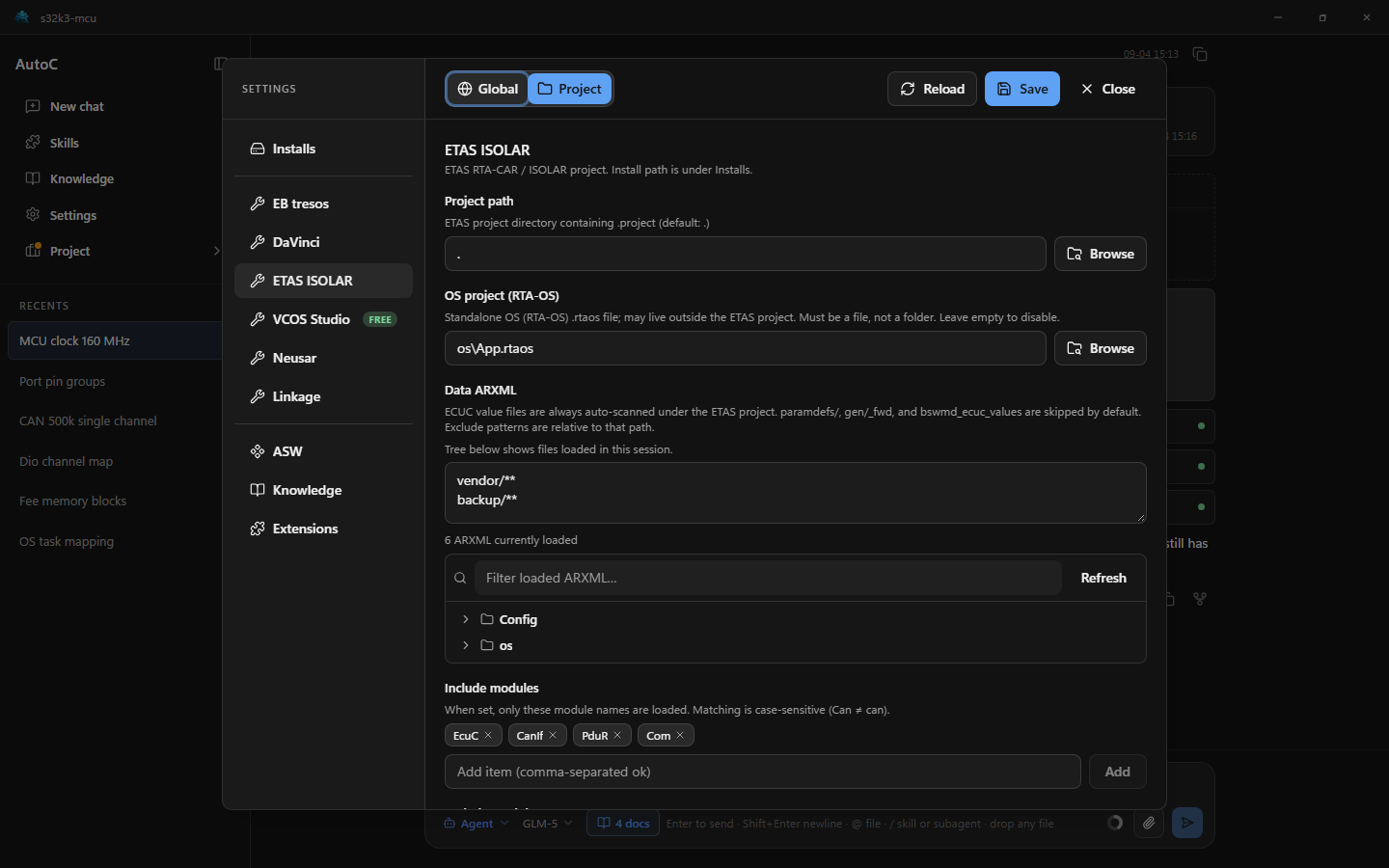
ISOLAR-AB_CLI.exe). - Open Settings → ETAS ISOLAR and fill in what you need:
| Field | Value |
|---|---|
| Project path | Folder with .project; usually the open project |
| OS project (RTA-OS) | Optional; standalone OS .rtaos file (may live outside the ETAS project; not a folder). When set, merged with Os already in ISOLAR |
| Data ARXML | Optional exclude patterns; leave empty to scan all .arxml under the ETAS project (skips paramdefs/ and gen/_fwd; ASW excluded) |
| Module linkage | When several tools share a module, set the owner under Settings → Module linkage. See Module linkage |
| Auto-assign params | Optional; param SHORT-NAMEs auto-assigned at generate (e.g. CanIfTxPduId) |
- Click Save, then Reload.
Success: an ETAS card under Project → Project info. Use Verify on a module; use Generate on the card and pick BSW or OS (save runs first). For a module shared by several tools, Save it on the owner's card. See Module linkage.
Advanced
Data ARXML — ECUC value files used when chat edits parameters. Always discovered under the ETAS project path. Skip unwanted paths with exclude patterns on Settings → ETAS ISOLAR → Data ARXML. Different scan root from ASW (the open project) — see ASW.
OS project (RTA-OS) — Some projects configure Os in a standalone OS project. Set Settings → ETAS ISOLAR → OS project (RTA-OS) to the .rtaos file. AutoC loads every ARXML listed there and merges it with Os already in ISOLAR. For ISOLAR to validate the Os you just edited, that ARXML must already be in the ISOLAR project (linked or the same file).
Auto-assign params — Some scalar parameters fail Verify with missing values, but ISOLAR assigns them at Generate; do not set them by hand (e.g. CanIfTxPduId).
- Symptom: Verify in Project info reports multiplicity / missing-value errors while the field stays empty in ISOLAR until generate.
- Configure: Settings → ETAS ISOLAR → Auto-assign params, then save and reload.
- Effect: Those parameters drop out of the editable list; Verify ignores missing-value errors for them.
Still failing: Troubleshooting.
Configuration sync
When several tools are used together, choose each module's owner under Settings → Module linkage. Saving the owner writes the shared parameters into the same module on the other tools. See Module linkage.
Missing Java compiler
Most users can skip this. Follow it only if AutoC reports that no Java compiler was found.
Check the Java that ships with ISOLAR first, then download a matching JDK.
1. Check ISOLAR’s Java version (replace with your install path):
# Try this first (common on 9.2 / 12.x)
& "C:\ETAS\RTA-CAR_x.x.x\ISOLAR-AB_x.x.x\javalibs\jdk\bin\java.exe" -version

# If that path does not exist (common on 9.1, jre only)
& "C:\ETAS\RTA-CAR_x.x.x\ISOLAR-AB_x.x.x\jre\bin\java.exe" -version
Note the major version, e.g. 1.8.0_… → 8, 11.0.x → 11.
2. Download and install a JDK with the same major version (must include javac, not a JRE-only package):
| Version you saw | Download |
|---|---|
8 (1.8.0_…) | Eclipse Temurin 8 |
| 11 | Eclipse Temurin 11 |
If -version fails or the output looks wrong, install JDK 8.
3. Set JAVA_HOME to the JDK install folder (it must contain bin\javac.exe).
Temporary (current PowerShell window only):
$env:JAVA_HOME = "C:\Program Files\Eclipse Adoptium\jdk-8.0.xxx-hotspot"Permanent (then open a new terminal and restart AutoC):
setx JAVA_HOME "C:\Program Files\Eclipse Adoptium\jdk-8.0.xxx-hotspot"4. Confirm and retry:
& "$env:JAVA_HOME\bin\javac.exe" -versionStart AutoC again, or click Verify in Project info (that installs the plugin).