
ORIENTAIS
AutoC reads and writes ECUC configuration through ORIENTAIS. On Settings → Install paths, select the configurator install root (not a folder inside it). The project directory contains navigator.xml.
Tested versions
| Configurator |
|---|
| ORIENTAIS Configurator for EasyXMen V2610 |
| ORIENTAIS Configurator V2.2 |
Other versions
If your configurator is not listed above and Verify or Generate in Project info fails, please contact us so we can evaluate support.
Open a project and set paths
- Open a project and select the project root that contains
navigator.xml. - Settings → Install paths: set the configurator install root.
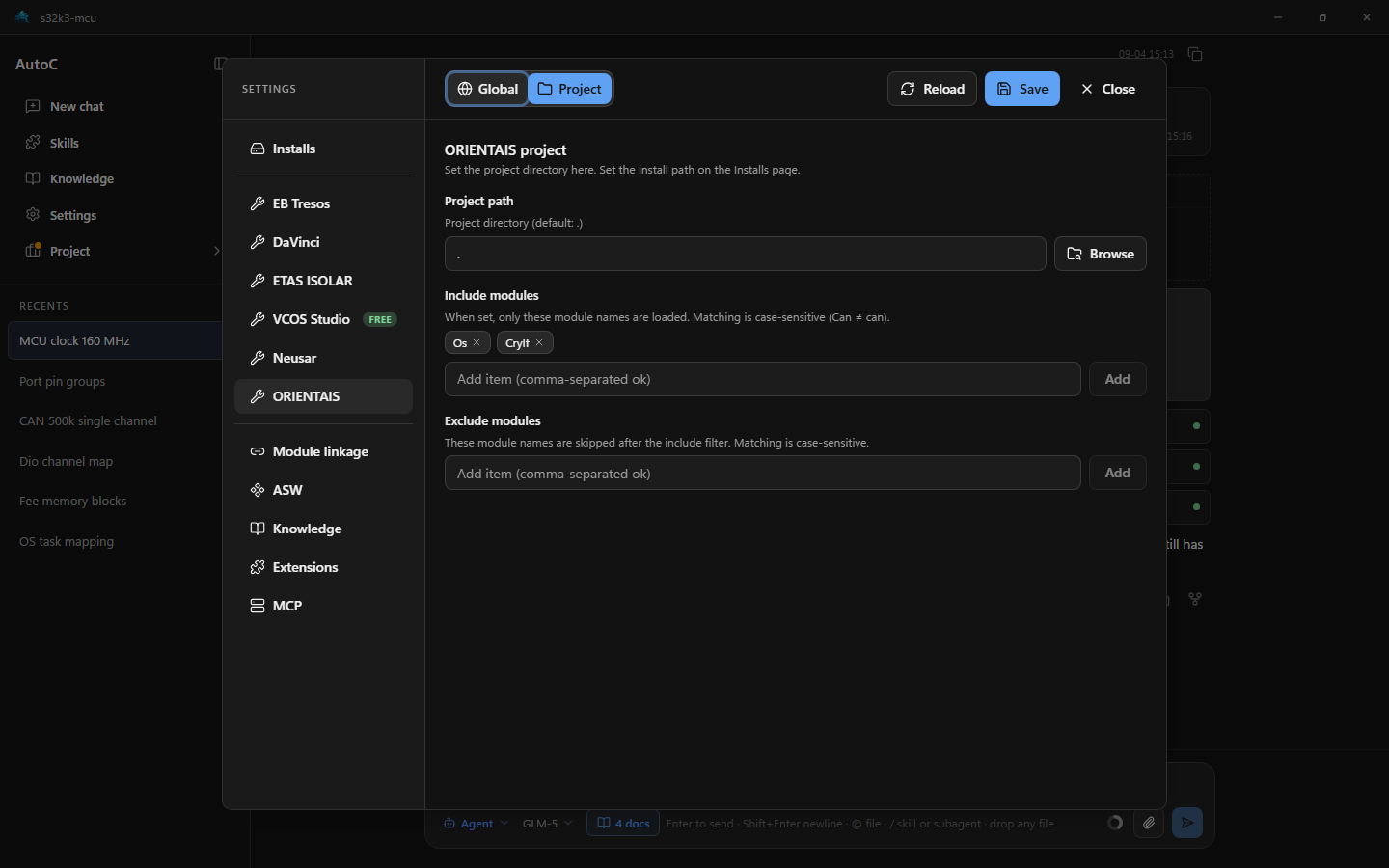
- Settings → ORIENTAIS: confirm the project path. When several tools share a module, set the owner under Settings → Module linkage. See Module linkage.
- Click Save, then Reload.
Success: an ORIENTAIS card under Project → Project info. Use Save, Verify, and Generate there. In chat you can list, add, and remove modules; add and remove can be undone. For a module shared by several tools, Save it on the owner's card.
Advanced
Module filters — Include modules / Exclude modules on Settings → ORIENTAIS (case-sensitive).
ASW — after the project opens, descriptions in the project are scanned, and the standard data types and address methods from the install are loaded. See ASW.
Configuration sync
When several tools are used together, set each module's owner under Settings → Module linkage. Saving the owner writes shared parameters to the same module in the other tools. See Module linkage.