Module linkage
EB, DaVinci, ETAS, VCOS, and Neusar can have the same project open. A module is edited in one tool. On save, parameters whose container short names exist on both sides are written to the other tools.
Terms
| Term | Meaning |
|---|---|
| Tool | EB tresos, DaVinci, ETAS, VCOS, or Neusar. Each tool appears once on a row. |
| Module | One configuration, such as Can, Os, or Dio. |
| Configuration name | The module's name in that tool. Can and Can_43_FLEXCAN can be the same module. Case does not matter. Leave the linked name empty to reuse the owner's name. |
| Owner | The tool where you edit the module and click Save. |
| Linked tool | Another tool on the same row. Its module is a copy and is not loaded as editable configuration. |
| Shared parameter | A parameter whose container short name exists on both sides. A container that does not match stays where it is. |
| Definition | The module definition path. Tools on the same row are bound together even when the paths differ. |
One row
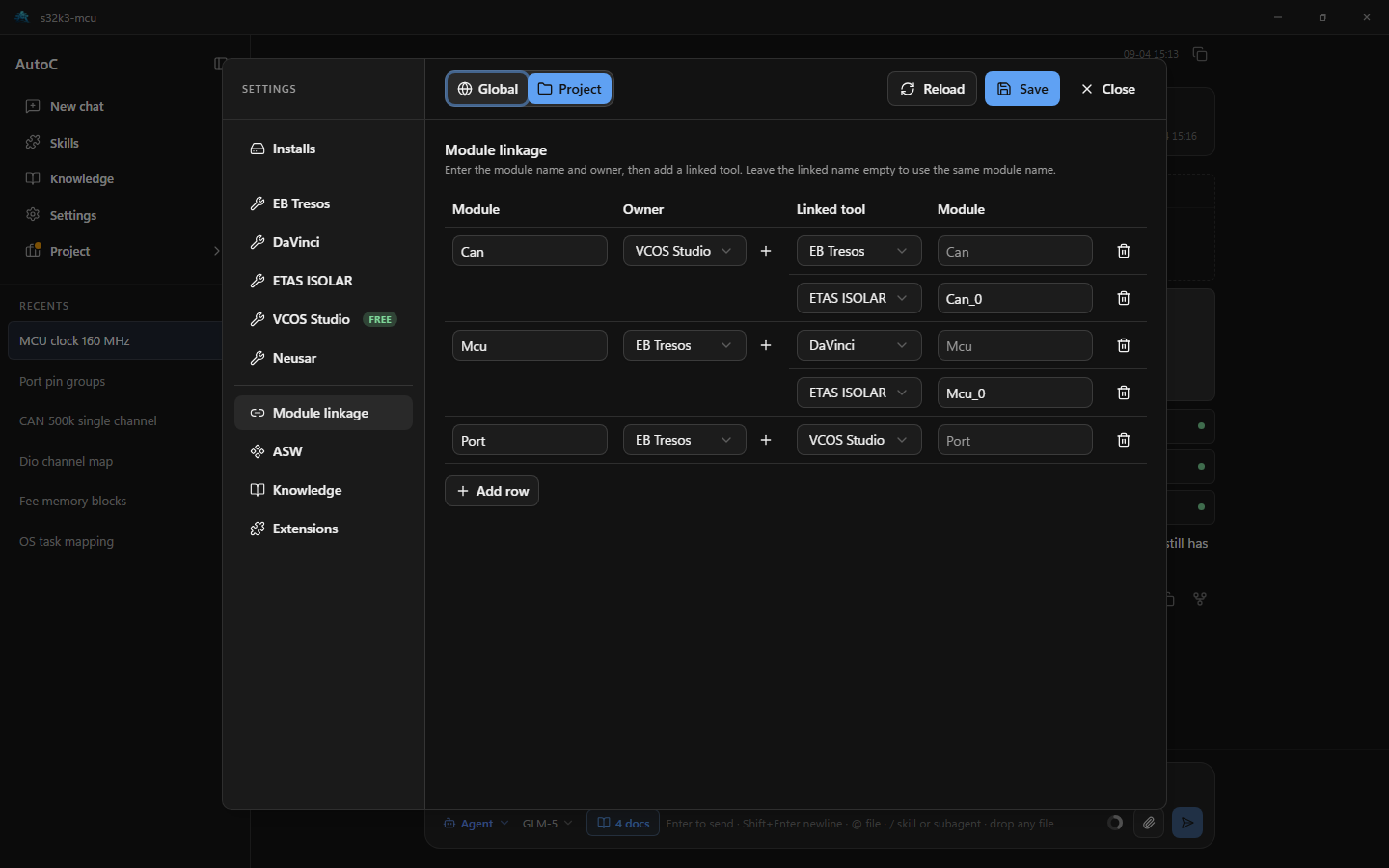
On this row, VCOS Can, EB Can_43_FLEXCAN, and ETAS Can are the same module. Saving VCOS Can updates the VCOS file and the matching parameters on EB and ETAS. A container that exists only on EB stays on EB.
Load order
Without linkage, modules that share a name load in this order. The later definition and configuration replace the earlier ones, and a warning is shown. A name that only shows up in the add list, and is not enabled, does not warn.
After linkage is set, the owner is the one you can edit. The other names are copies. Save and reload on a copy do not change that side's files.
Save
Linked modules and exclude modules
Exclude modules are set on each tool. The name is case-sensitive. A listed module is not loaded on that tool. The file stays on disk, and saving another tool does not change it.
Linkage is set under Settings → Project → Module linkage. Project info does not treat the copy as an editable module, and the configuration is still loaded. Saving the owner writes parameters whose container short names match. Names are not case-sensitive.
| Linkage | Exclude modules | |
|---|---|---|
| Where | Project → Module linkage | Exclude modules on that tool |
| This side | Loaded as a copy | Not loaded |
| Saving the owner | Shared parameters are written into this file | Nothing is written |
| Names | Case does not matter | Case-sensitive |
How to set it
- Open Settings → Project → Module linkage.
- Add a row, enter the module name, choose the owner, then use the plus to add a linked tool. A tool already chosen as owner cannot be a linked tool. Each row needs at least one linked tool.
- Click Save, then Reload.