
EB Tresos
AutoC reads and writes MCAL configuration through EB Tresos. You need the tresos install directory and project path.
Open the project and set paths
- Open a project — pick the folder that contains
.project. - Open Settings → Install paths and set the tresos install root (it contains
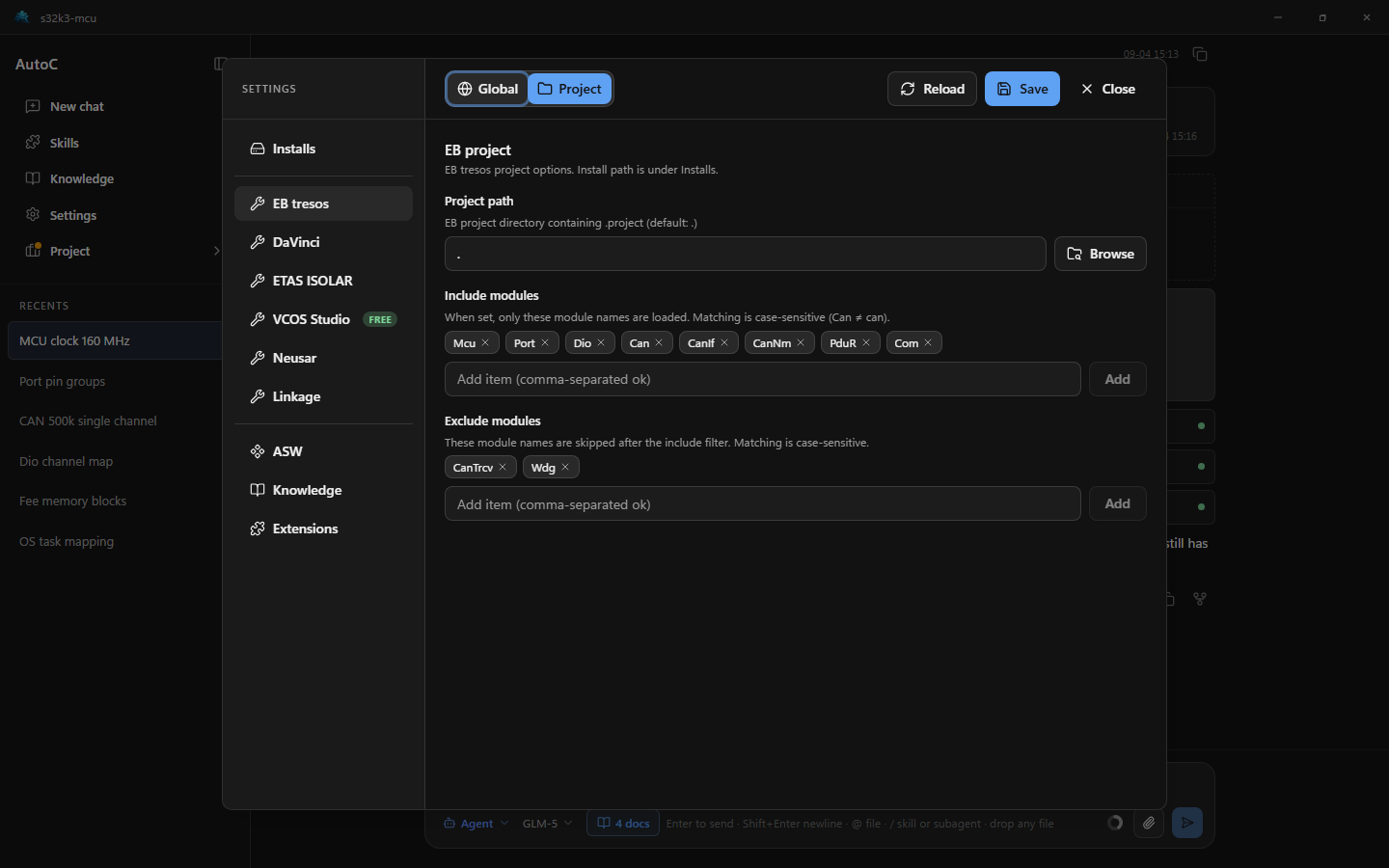
bin\tresos_cmd.bat). - Open Settings → EB Tresos, confirm the project path, and list modules to load under Include modules (names are case-sensitive).
- Click Save, then Reload.
Success: an EB card and loaded modules under Project → Project info. See Project info. Issues: Troubleshooting.
Do not edit .xdm / .arxml by hand. Describe the goal in chat, or use Save, Verify, and Generate on a module in Project info.
Advanced
Module filters — on large projects, fill Include modules / Exclude modules (case-sensitive). Save, reload, then check Project info.
Mixed projects — under Settings → Module linkage, choose which tool owns each module. Saving the owner writes the shared parameters to the other tools. See Module linkage.
ASW — Com, PduR, and Rte foreign references need system ARXML. The open project is scanned automatically; skip paths under Settings → ASW. See ASW.